Connecting your WordPress site to Asking Franklin allows you to publish your AI-generated content directly to your website with just one click. This guide will walk you through the simple setup process using WordPress Application Passwords.
Prerequisites
- A WordPress site (version 5.6 or higher recommended)
- Administrator access to your WordPress site
- An active Asking Franklin account
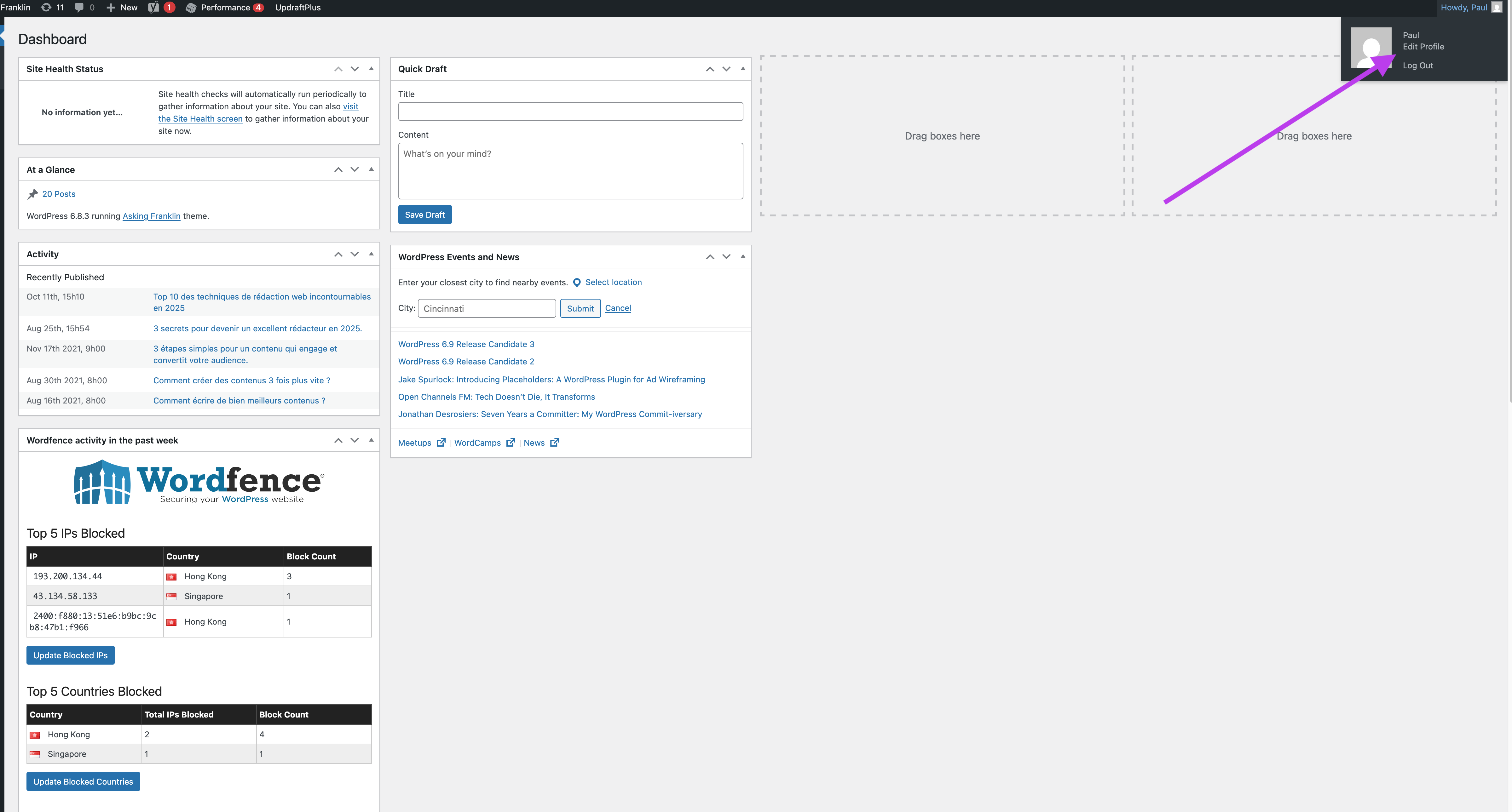
Step 1: Access WordPress User Settings
First, log in to your WordPress admin dashboard and navigate to your user profile settings.
Step 2: Create Application Password
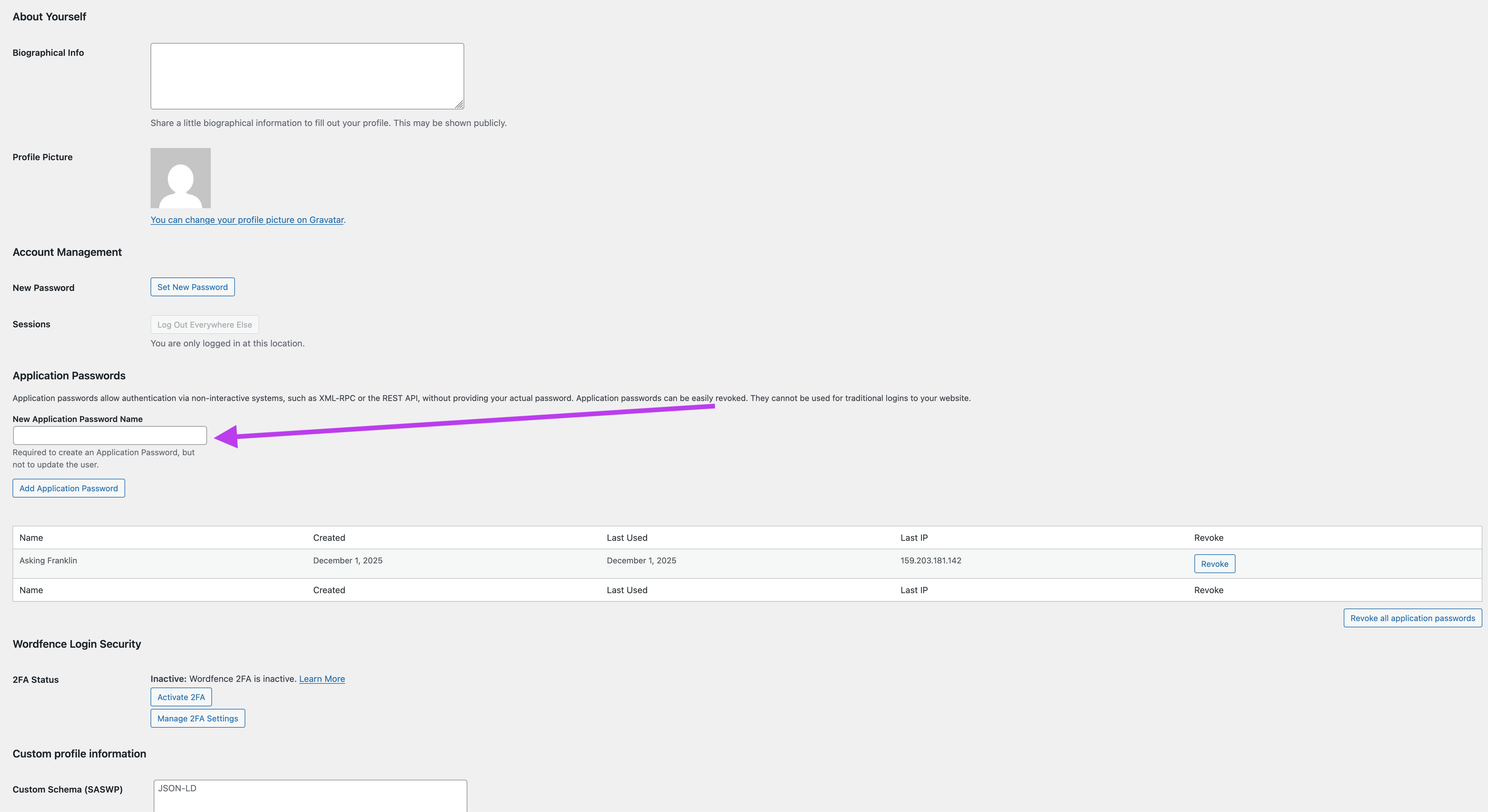
In your WordPress user profile, scroll down to the "Application Passwords" section. Enter a name for your application password (e.g., "Asking Franklin") and click "Add New Application Password".
Step 3: Copy Your Application Password
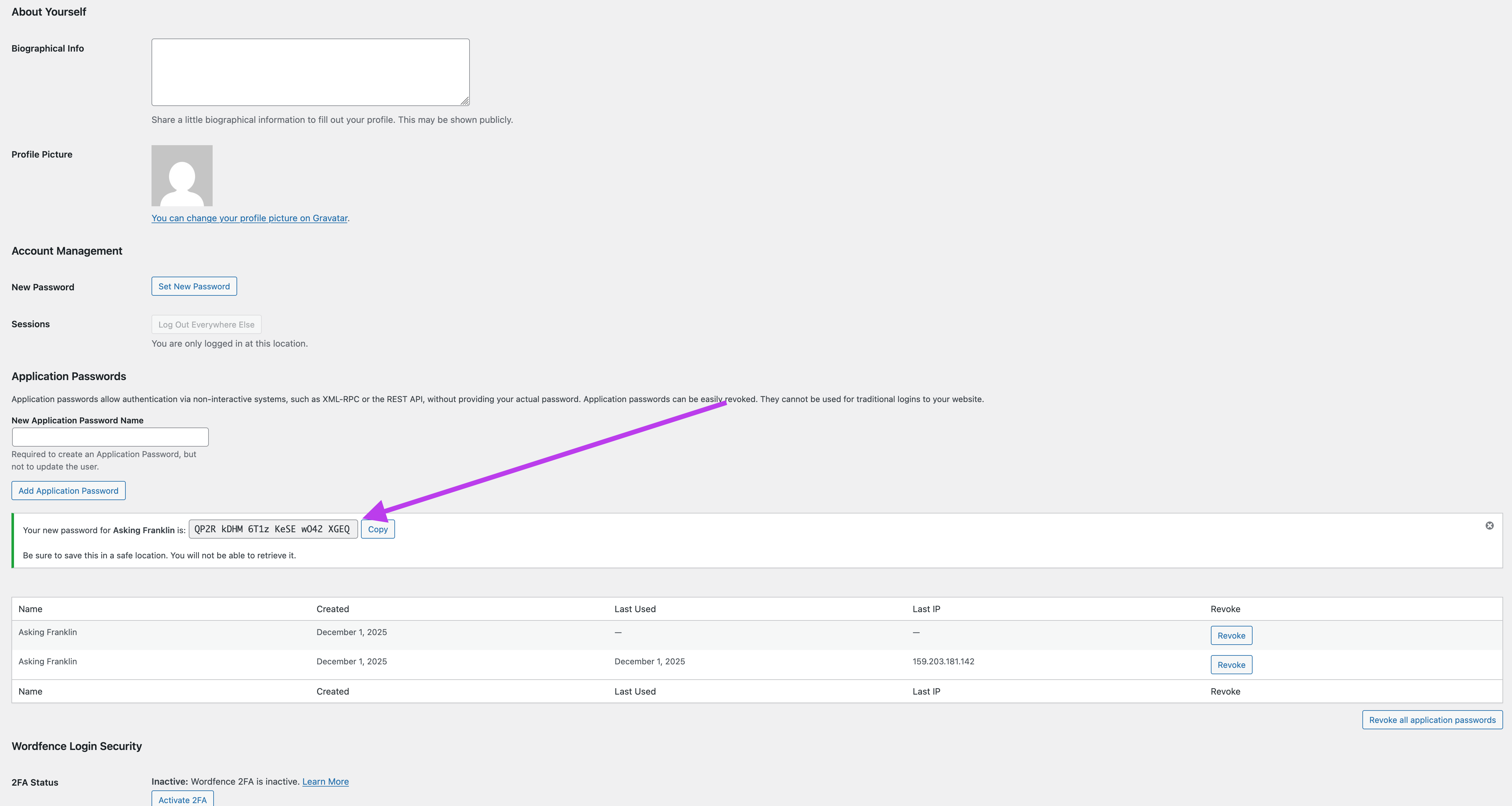
Once created, WordPress will display your new application password. Copy this password immediately as you won't be able to see it again. This is a one-time display for security reasons.
⚠️ Important: Make sure to copy the password now. You won't be able to retrieve it later.
Step 4: Open Asking Franklin Settings
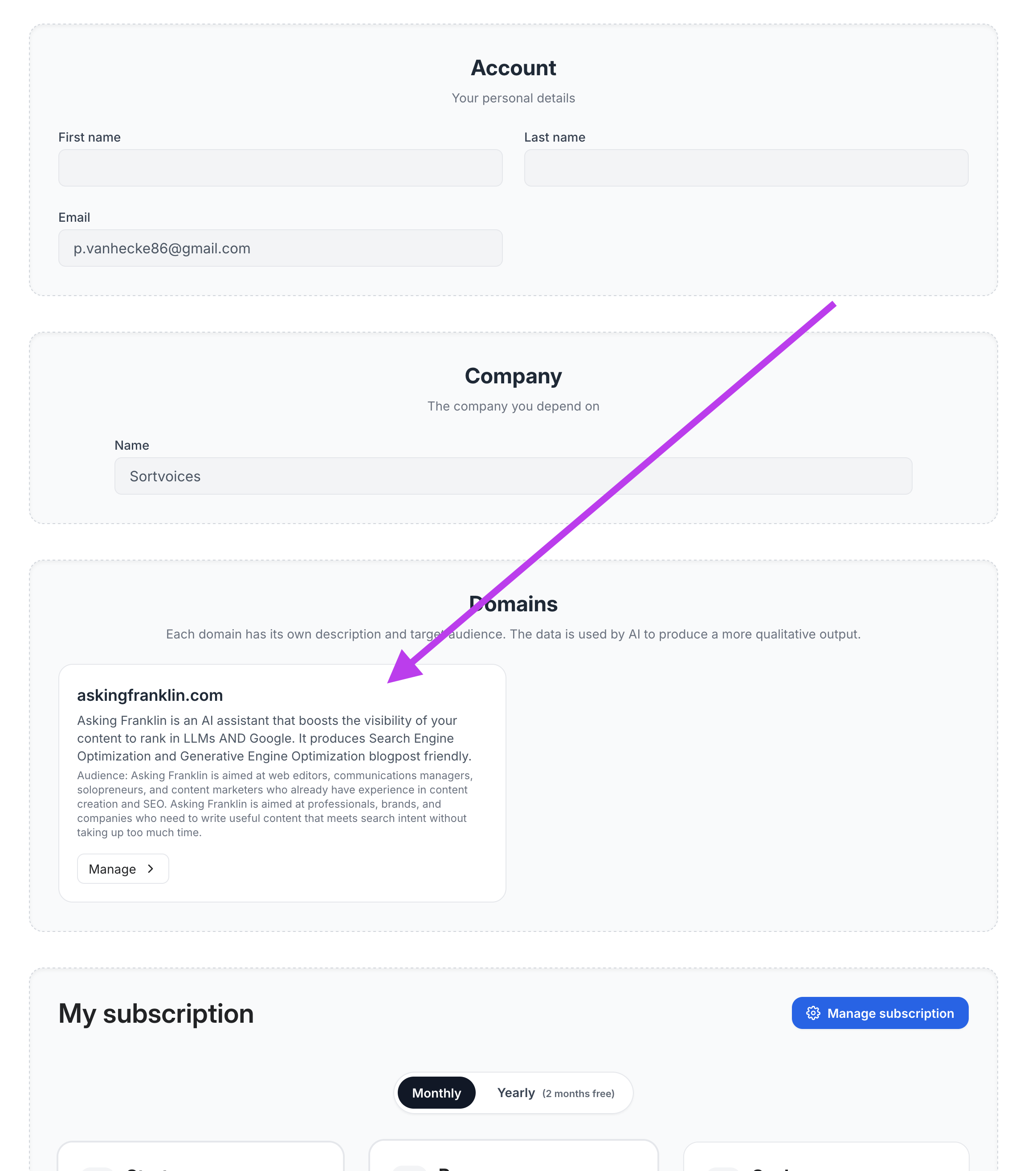
Now, switch to Asking Franklin. Navigate to your settings page and click on the "Manage" button of the "Domain" section to configure your WordPress connection.
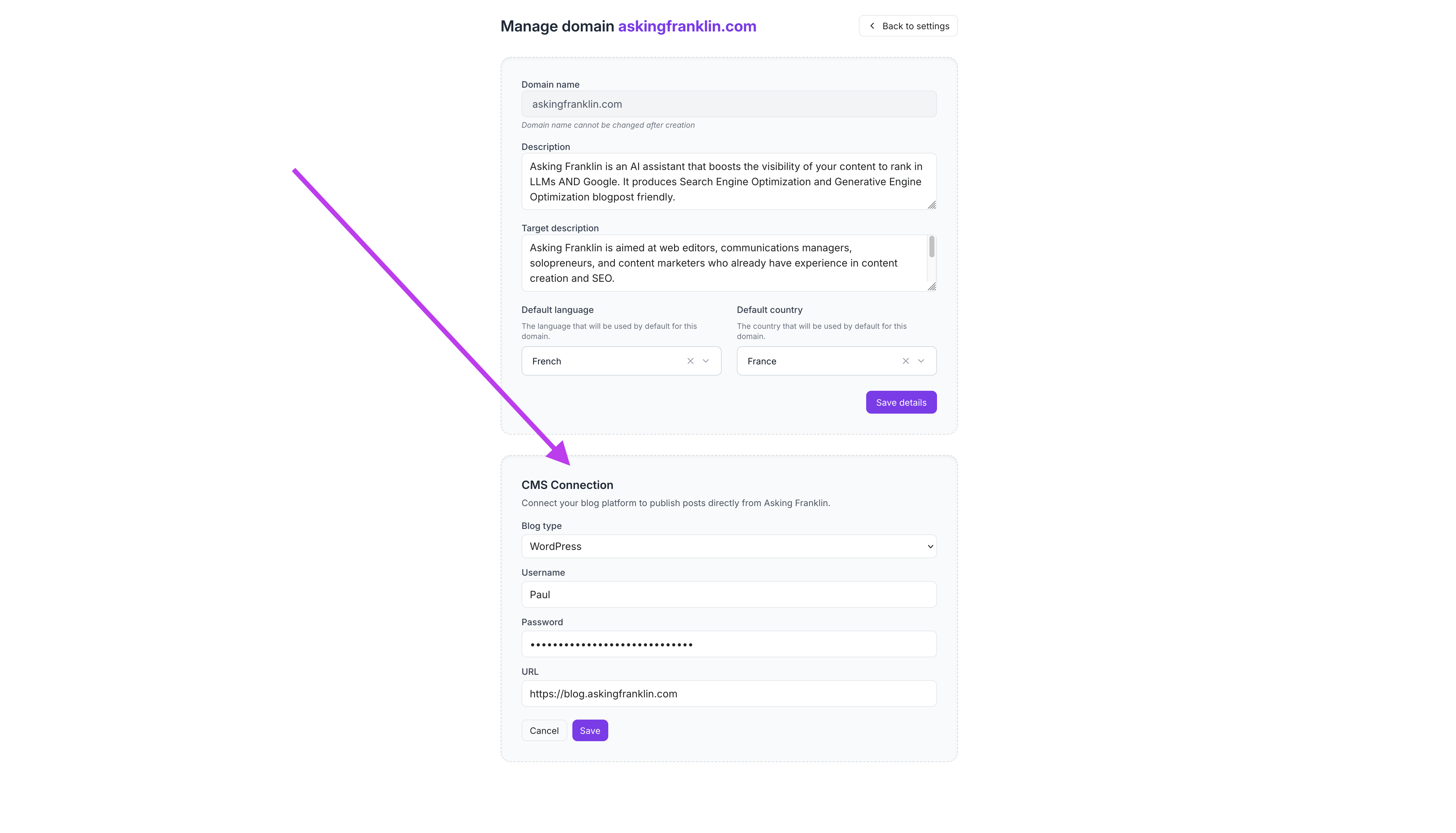
Step 5: Enter WordPress Credentials
In the WordPress connection form, enter the following information:
- WordPress URL: Your wordpress site's URL (e.g., https://yoursite.com, it can be different from your main domain. For example for asking franklin it's https://blog.askingfranklin.com)
- Username: Your WordPress username (not the app name, but your username)
- Application Password: The password you copied in Step 3
Click "Connect" to establish the connection.
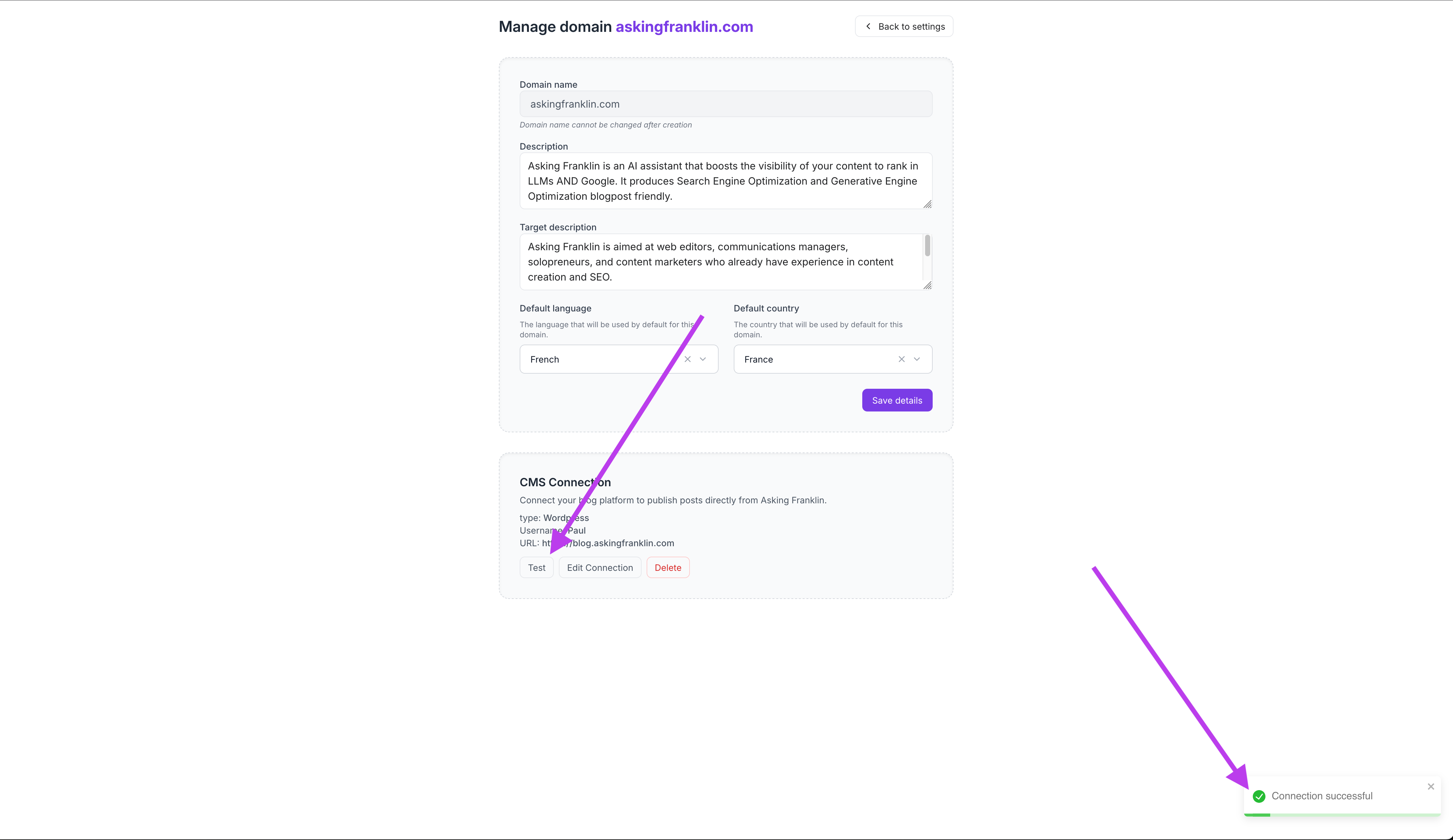
Step 6: Test the Connection
Once you've entered your credentials, Asking Franklin will test the connection to your WordPress site. You should see a success message confirming that your site is connected.
Congratulations! Your WordPress site is now connected to Asking Franklin, and you can publish content directly from the platform.
Troubleshooting Tips
If you encounter issues while connecting your WordPress site, try these solutions:
Connection Failed Error
- Verify that your WordPress URL is correct and includes https:// or http://
- Make sure your WordPress site is accessible and not behind a firewall
- Check that you're using the correct username (not your email address)
- Ensure you copied the application password correctly without any extra spaces
Application Passwords Not Available
- Update WordPress to version 5.6 or higher
- Ensure your site uses HTTPS (application passwords require SSL)
- Check if your hosting provider has disabled this feature
Publishing Issues
- Verify that your WordPress user account has permission to publish posts
- Check if your WordPress REST API is enabled
- Ensure no security plugins are blocking REST API requests
Next Steps
Now that your WordPress site is connected, you can:
- Generate SEO-optimized articles in Asking Franklin
- Publish directly to WordPress with one click
- Edit and refine content before publishing
Need help? Contact our support team at contact@askingfranklin.com